Appearance
Design spec & RFIs
Two sidebar panels keep the written intent of the drawing set at your fingertips: the Design spec the copilot extracted, and the RFIs it raises when something doesn't add up.
The Design spec panel
Open it with the document icon in the sidebar. This is where Lectora, the reading agent, puts everything it pulled out of the general notes.
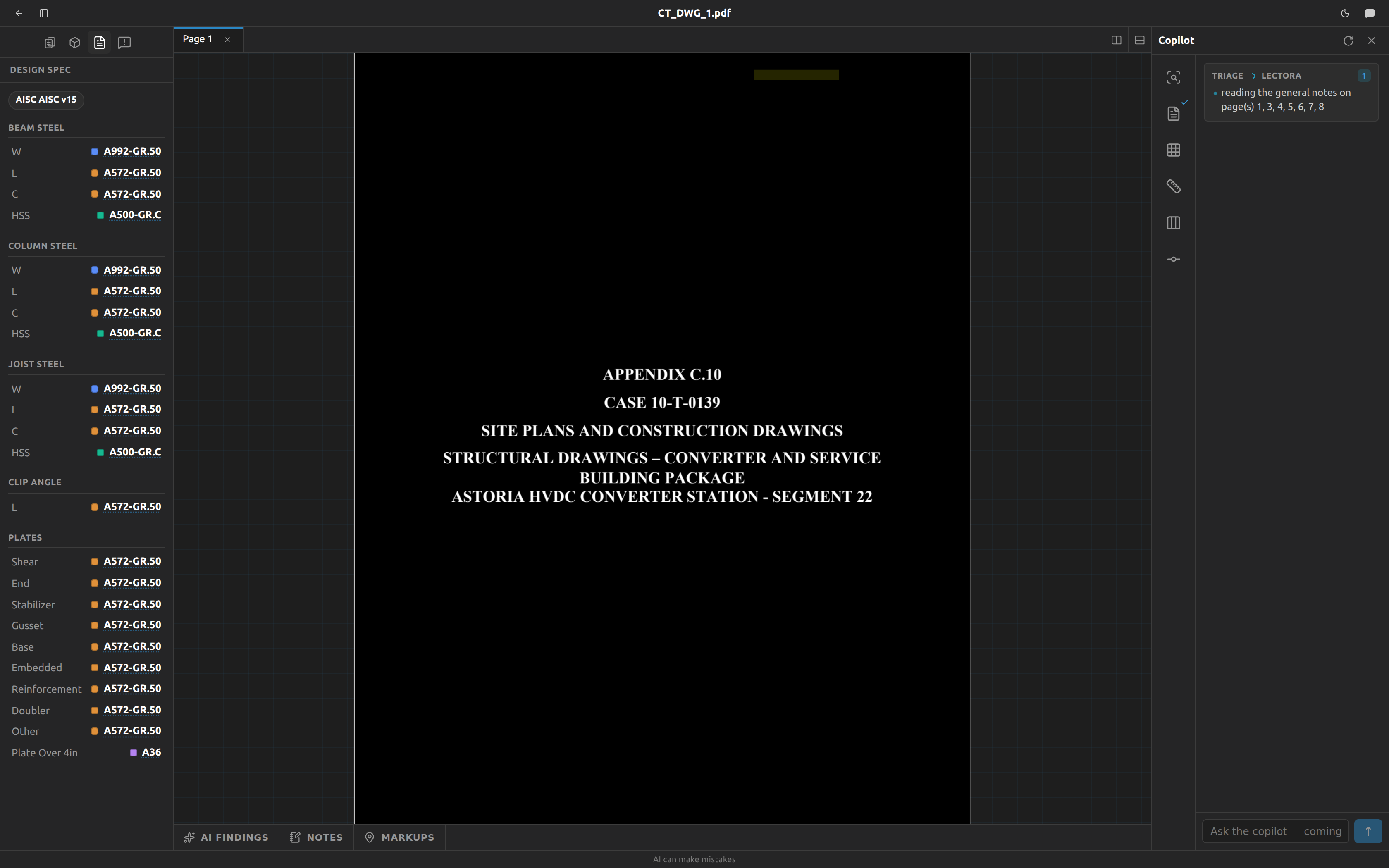
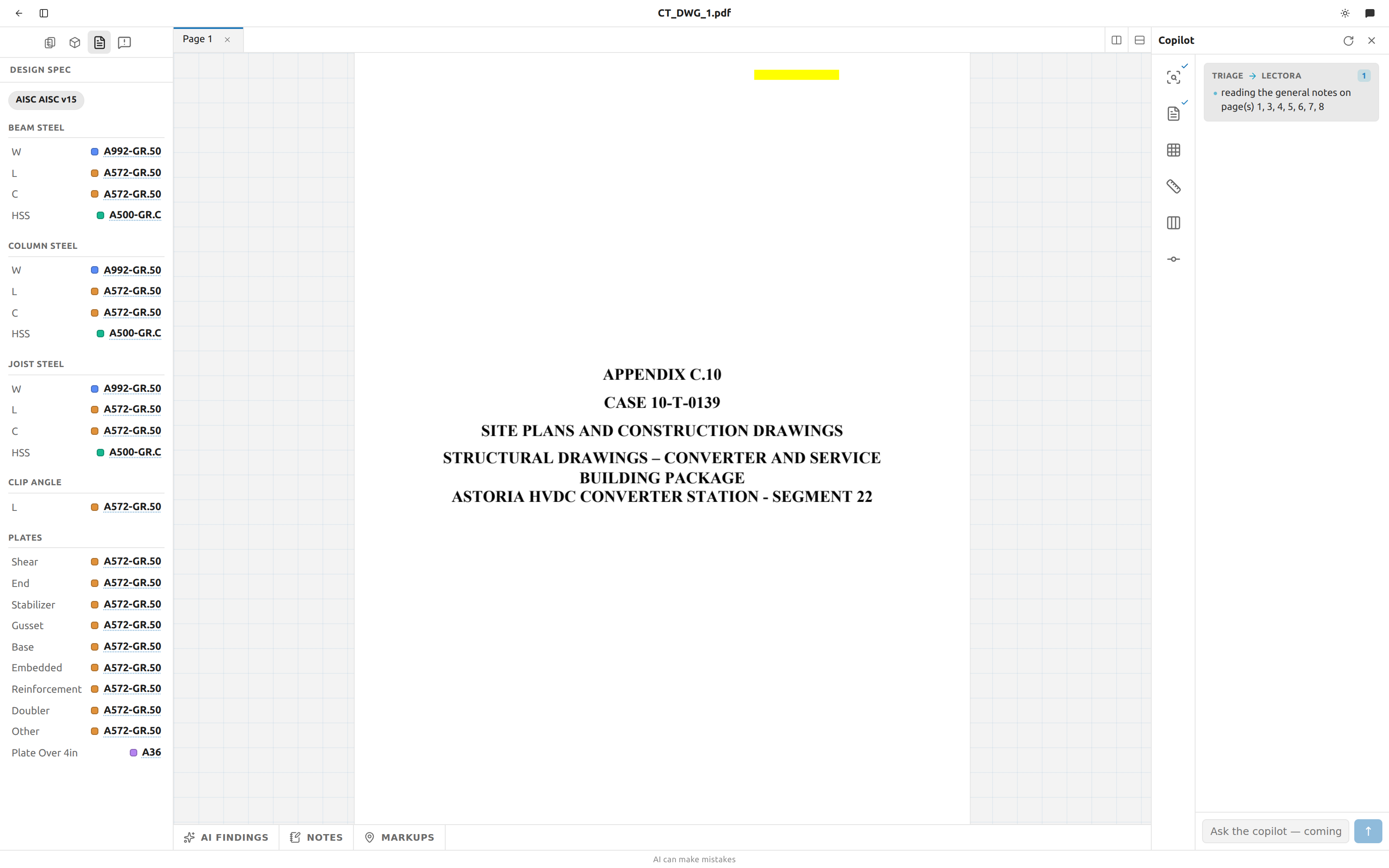
Instead of scrolling through pages of notes, you get a clean, structured spec — the steel grades, bolt and weld defaults, and the other AISC design values that apply across the project. It's the reference you'll check while tracing members: when the drawing doesn't call out a grade or a default, the spec is where it comes from.
Every value is also a link back to the drawing: click a spec entry and Fablnx opens the sheet it came from and highlights the exact text, so you can check the copilot's read against the source in one click.
The scene editor can even Fill from knowledge — pre-fill member properties from this extracted spec so you're not typing the same grade over and over. See the scene editor.
The RFIs panel
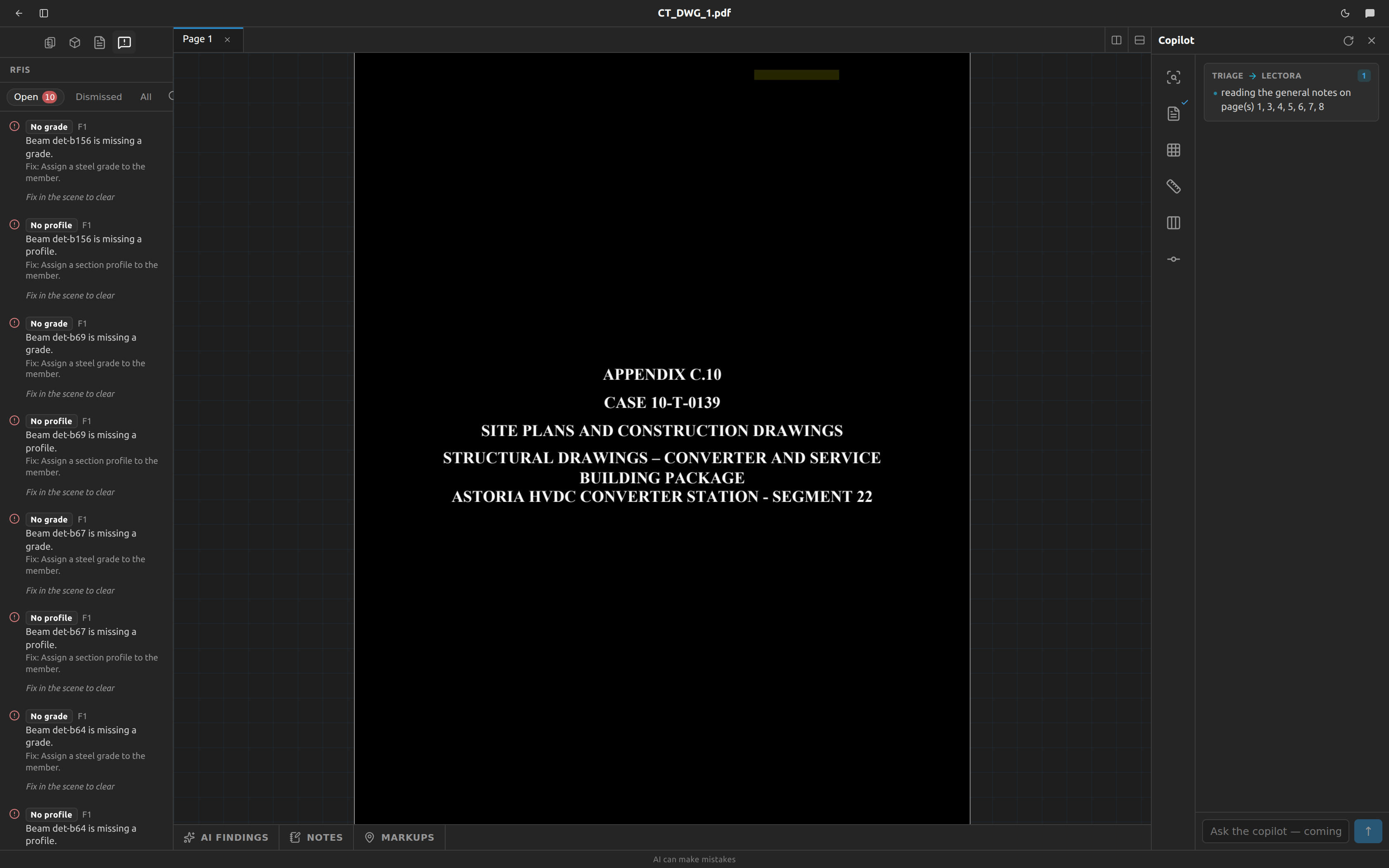
Open it with the warning-bubble icon. RFI stands for Request for Information — here it's the running list of conflicts and missing pieces Fablnx found while checking your work.
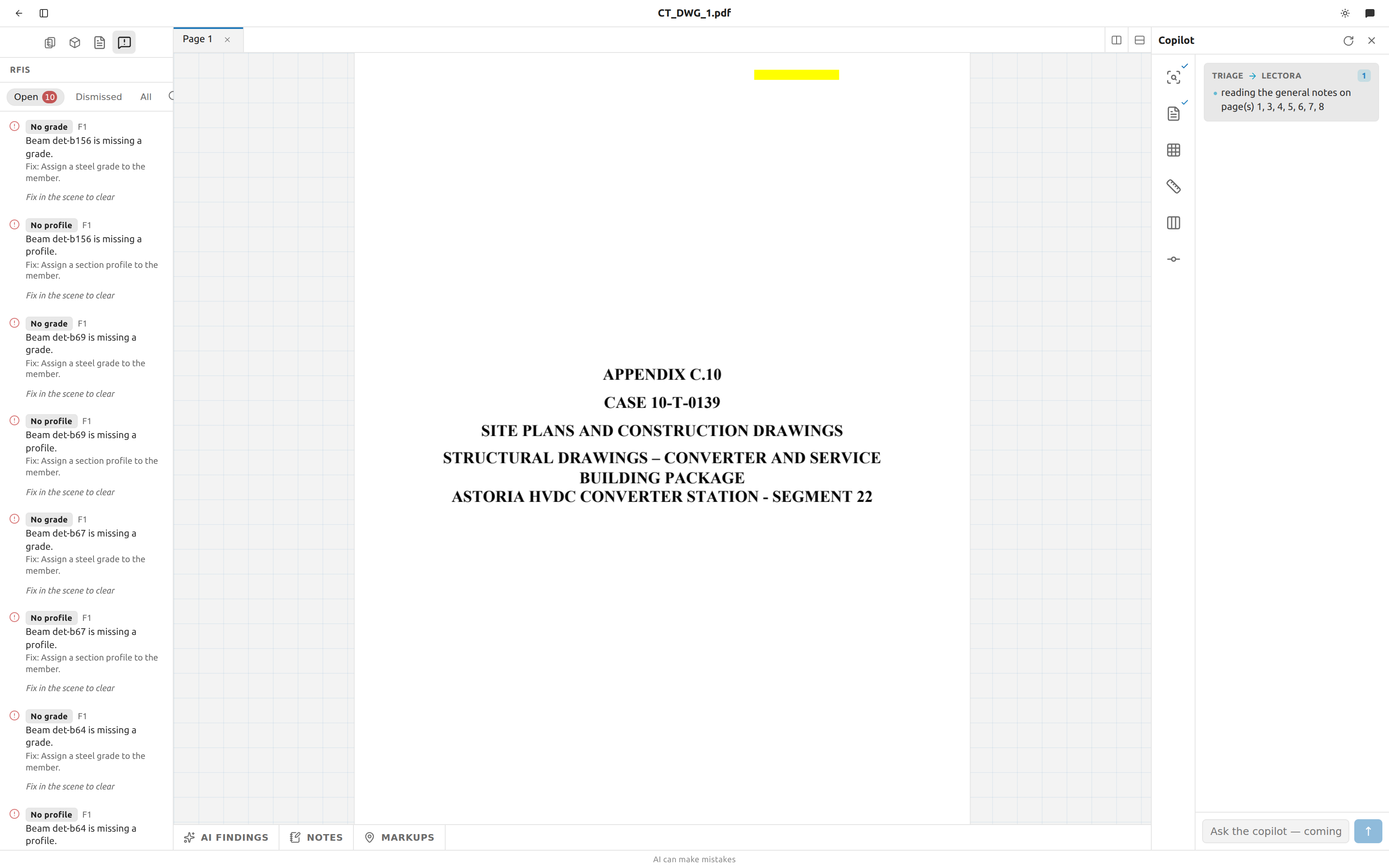
Reading the list
Filter tabs across the top let you focus:
| Tab | Shows |
|---|---|
| Open | Issues still to resolve. |
| Dismissed | Issues you've set aside. |
| All | Everything, with a count. |
The refresh button re-checks the drawing set. Each row shows:
- a status — open (alert) or answered (check),
- the rule that fired and the scene it's in,
- a plain-language message, and
- a Fix: hint telling you what to do about it.
Acting on an issue
- Click a row to open the scene right at the spot the issue is about — no hunting.
- Errors must be fixed in the scene to clear (the row tells you so).
- Warnings can be Dismissed with a note if they don't apply, and Reopened later from the Dismissed tab.
RFIs are how Fablnx makes sure the model you commit is actually coordinated — every conflict is visible, tracked, and one click from its source on the drawing.
Where these come from
The Design spec is filled by Lectora; RFIs are raised when you Validate a scene. Both connect straight to the scene editor, which is next.