Appearance
Projects & uploads
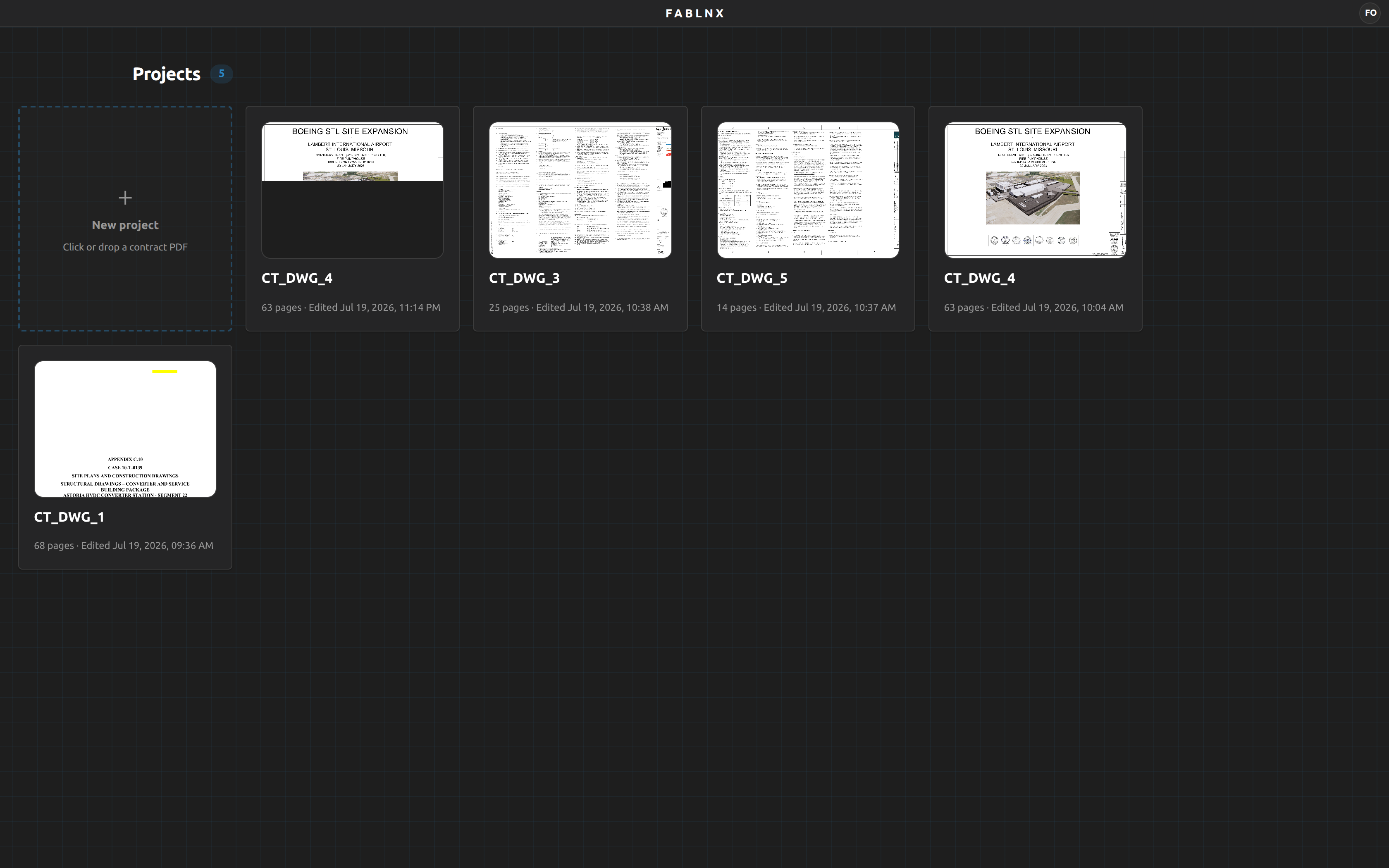
Everything in Fablnx lives inside a project: one contract drawing set and everything built from it — the pages, the scenes, the design spec, the RFIs and the coordinated model. The projects screen is where you create one, open one, or delete them.
The projects screen
| Control | Where | What it does |
|---|---|---|
| New project tile | First in the grid | Click it, or drop a PDF on it, to start a project |
| Card thumbnail | Each card | Single click opens the project |
| Checkbox | Top of each card | Selects that project. Appears on hover, and stays visible once ticked |
| Select all | Heading row, once something is ticked | Ticks every project in the list |
| Delete N projects | Heading row, once something is ticked | Deletes everything ticked, after a confirmation |
| ✕ | Heading row, right of Delete | Clears the selection |
| Free up space | End of the heading row, when there is much to free | Releases the sheets this computer is holding — see Space this computer is using |
| ? button | Top right | The help menu: Start tutorial and Documentation ↗ |
| Avatar button | Top right, last | Your account menu — see Your account menu |
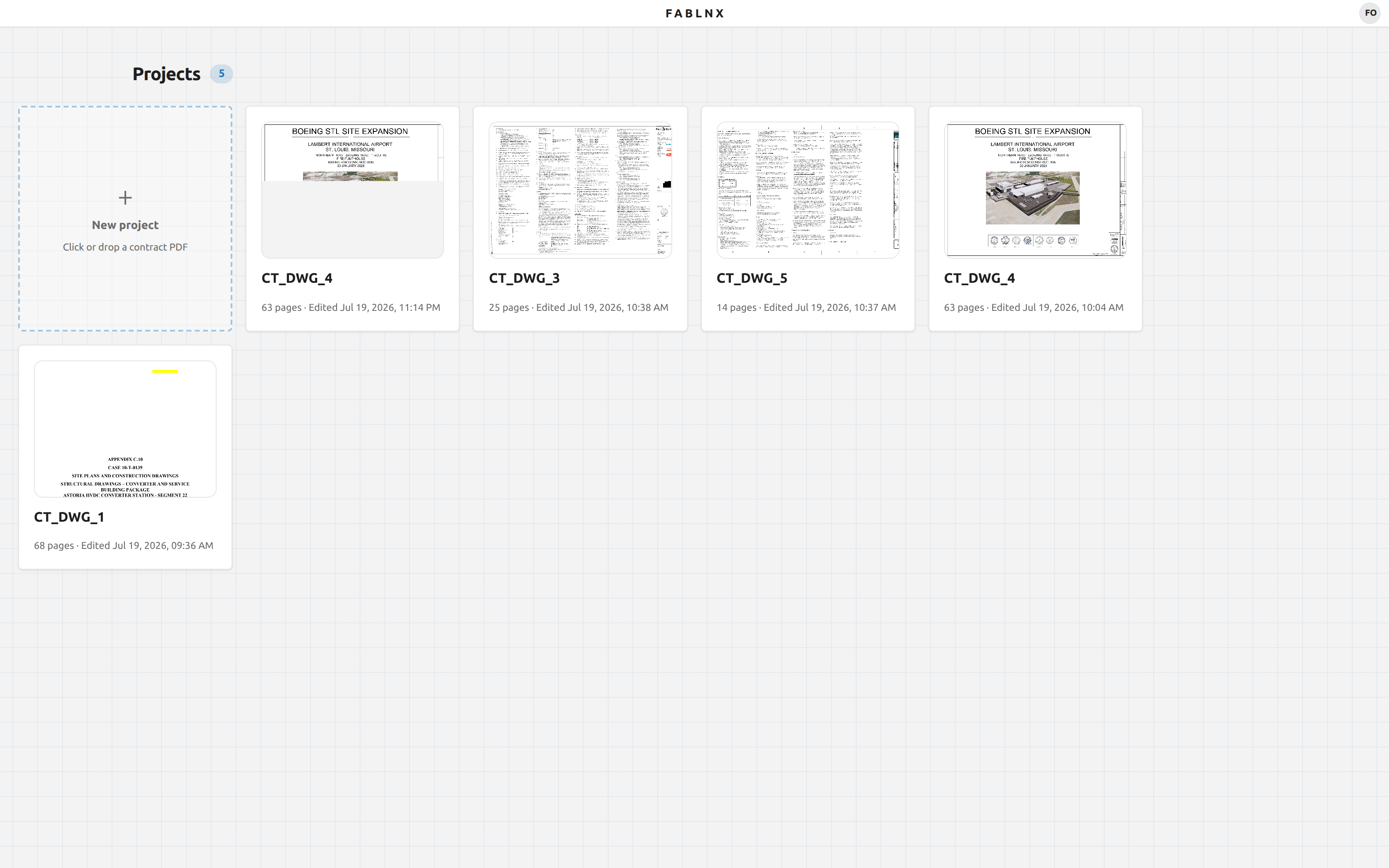
The heading reads Projects, with a badge showing how many you have once the list has loaded. The strip along the top carries the FABLNX wordmark in the centre.
Keyboard shortcuts don't work on this screen
Every Fablnx shortcut — Quick Open, the shortcut sheet, panel toggles — is registered inside a project only. On the projects screen the keyboard does nothing except the standard Tab focus order (and Enter / Space on the New project tile). There is also no theme toggle here; the light/dark switch lives in the project top bar.
While it loads, and when it can't
| State | What you see |
|---|---|
| Loading | Eight shimmering placeholder cards |
| Failed | Couldn’t load projects. — there is no retry button; reload the page |
| No projects yet | Just the New project tile — there is no separate empty-state screen |
Create a project
You need a contract PDF. There is no other way to start a project, and no blank or template project.
- Click the dashed New project tile — or drag your PDF onto it.
- Pick the PDF. (With the tile focused, Enter or Space also opens the file picker.)
- Watch the tile: it reads Uploading… 40% with a progress bar, then Processing…, with the filename underneath.
- The project opens by itself once the first sheet has been drawn — usually a second or two after the upload finishes — and the copilot starts reading. Fablnx waits for that first sheet on purpose, so the drawing is on screen the moment the project opens instead of a blank canvas. The rest of the sheets keep arriving in the file panel behind you; you don't wait for the whole set.
The tile's own hint tells you where you are: Click or drop a contract PDF at rest, Drop the PDF to start while you drag over it.
Drop it on the tile, not just anywhere
A PDF dropped elsewhere on the screen is ignored on purpose, so your browser never navigates away from Fablnx and loses the upload. Aim for the dashed tile.
What files are accepted
| Rule | Detail |
|---|---|
| Format | PDF only — accepted if the file is a PDF or its name ends in .pdf |
| Content | Vector (CAD-exported) and scanned image PDFs both work |
| Size | No size limit. A full multi-hundred-page set is fine; large files simply take longer |
| Count | One PDF per project |
Pick anything else and the tile says That’s not a PDF — choose a contract PDF. You can re-pick the same file straight after an error — no need to reload.
The project's name
The name comes from the PDF's filename, decided when the file is uploaded. There is no name field in the upload flow, and no rename control anywhere on the projects screen — so name the file the way you want the project listed before you upload it.
Inside the project, the title bar shows the PDF filename
The workspace title bar shows the contract filename, not the project name. They are usually the same, but if a project is renamed elsewhere they can drift apart, and the title bar keeps showing the filename.
If the upload fails
The hint slot turns red and shows what went wrong: the server's own message, or Upload failed, or Network error during upload if the connection dropped mid-way. Nothing is created; try the same file again.
If the PDF can't be read
The upload can finish and the drawing still not open — a corrupt or password-protected PDF, say. Fablnx tries a few times, and when it gives up the tile says This drawing could not be read. Check the PDF and try again. You are told as soon as that happens, not after a wait.
Very rarely you'll see This drawing is taking too long to open. It may still finish — try again. That is a three-minute cut-off rather than a verdict: the read has neither finished nor failed, and it may yet complete on its own.
What happens after the upload
Two stages start on their own, with no button to press:
| Agent | What it does | Where to watch |
|---|---|---|
| Triage | Reads every page's title block and sorts the set into General Notes, Steel Structures and Excluded | The Files panel shows Identifying pages · 12 so far while it runs — see Files & pages |
| Lectora | Reads the general-notes pages into the design spec | The Design spec panel shows Reading the general notes… |
These two are the only things that run automatically. Every detection step is triggered by you, from inside a scene — see Detection.
Why the project opens straight away
You never see the new card appear in the list, because the app takes you into the project as soon as the upload lands. The PDF you just chose is held in the browser for that session, so pages draw immediately instead of waiting for the server to render them. Triage is already working in the background while you read sheet one.
Open a project
Click a card once. (The tutorial's step 4 says to double-click; it is wrong — one click opens it.)
Each card shows:
- The thumbnail — the second sheet of the set once it has been rendered. (The card is meant to show page 1; this is a known quirk.) Before any page exists you get a monogram instead: the first letter of the project name.
- The name — from the PDF filename.
- The meta line — the page count and Edited, with the date and time in your own time zone.
Switching between projects re-downloads pages
Fablnx caches rendered pages on your machine for one project at a time. Opening a project clears the cached pages of every other project, so going back to the one you just left means downloading its pages again. On a fast connection you will barely notice; on a slow one, prefer finishing in one project before switching.
Delete projects
Deleting is a selection now: there is no delete button on a card, so no single click can destroy anything.
- Hover a card and click the checkbox at its top-right. The card gets a coloured ring, and the heading row shows how many are ticked.
- Tick as many as you like — or click Select all.
- Click Delete N projects.
- Read the dialog and check the names, then click Delete.
Ticked cards stay visible
The checkbox only appears when you hover a card — but once ticked it stays on screen, so the count in the heading row always refers to something you can see. Click ✕ to clear the selection without deleting anything.
The dialog names the projects rather than just counting them, up to eight with "and N more" after that. A number is not something you can check; the list is what lets you spot one you did not mean to tick.
It spells out exactly what goes: the projects, their contract PDFs, and all their rendered pages, removed from your projects. It ends This can't be undone. — there is no undo and no trash to recover from.
During the beta, deleting does not erase your upload
A project you delete leaves your list and you cannot get it back — but the Fablnx team keeps a copy of it, including the contract PDF and everything built from it, so that testing can be reviewed after the fact. It is not deleted from our servers when it is deleted from your screen.
If you have uploaded a drawing you need actually erased, ask us and we will remove it.
The cards disappear straight away. The screen does not make you watch, and any remaining tidying up on the server carries on in the background after the cards are gone.
Don't close the tab straight after deleting
Because the work continues in the background, closing the tab or navigating away immediately can leave some of it unfinished, and those projects will be back the next time you open the list. Give it a moment before you leave the page.
The space this machine was holding is freed too. Sheets and geometry you have opened are kept on your computer so they draw instantly and work offline, and deleting the project releases them — including a project you had made available offline, since pinning keeps a project on hand rather than outliving its deletion. If a project was deleted from another computer, this one lets its copy go the next time you open the projects list.
| To back out | How |
|---|---|
| Cancel | Click Cancel — it is focused by default, so Enter cancels |
| Dismiss | Press Esc, or click the dimmed background |
| Untick everything | Click ✕ in the heading row |
If a project cannot be deleted, its card comes back and a message appears at the bottom of the screen saying how many went and how many did not — for example 5 deleted. 2 could not be — still in the list. The ones that came back stay ticked, so you can try again with one click.
Your account menu
The circular button in the top-right corner shows your initials. Click it for:
- Your name (or Signed in if the account has no name)
- Your email
- Log out
That is the whole menu. There are no profile, settings, theme, billing or organisation options.
Click away to close it
The account menu closes when you click outside it. Unlike the help menu next to it, Esc does not close it.
Space this computer is using
Sheets and geometry you have opened are kept on this computer so they draw instantly and are there offline. That is worth a few hundred megabytes on a large drawing set, so once it adds up to something worth mentioning, the heading row says how much and offers to release it:
336 MB cached [ Free up space ]
Below about 50 MB it stays out of the way — a cache doing its job is not worth a line on screen.
What it frees. Everything held here, including projects you made available offline. Nothing on the server is touched and no project is deleted: the sheets are downloaded again next time you open one, and a project you had pinned needs making available offline again.
Why it can show a number with no projects listed. The bytes belong to sheets, not to the project row, so they outlive a project deleted from another computer — and a sheet saved when a tab closed mid-write leaves a file with no record of itself. Both are counted here and both are released, which is why this reads the browser's own figure rather than adding up what Fablnx thinks it saved. Expect a few megabytes to remain afterwards: the app itself and anything queued offline are in that number too.
Inside Tekla Structures
Run Fablnx from the Fablnx tab on Tekla's Modeling ribbon and the window is a view onto the model you have open — so the projects screen has a little more to say.
The window itself
- The ribbon button opens it, and brings it forward if it is already open. You are not signed out when Tekla restarts: the sign-in is kept with the window's own browser profile.
- Ctrl + Alt + F shows or hides it, from anywhere — including while you are working in Tekla. A hidden window comes back from the Fablnx icon beside the clock. See Keyboard shortcuts.
- Where you put the window is remembered per model. Spread it across two screens for a mill building and keep it small for a mezzanine; each model gets its own. A model you have never placed leaves the window exactly where it is.
- Lengths follow the model's own environment. In a metric model Fablnx shows millimetres and reads what you type as millimetres; in an imperial one it shows feet and inches. Feet-and-inch marks are always understood, so you can type
10'-6"straight off an imperial drawing into a metric model.
If you copied the model folder
Copying a model folder gives you a second model that Tekla identifies exactly as the original does. Fablnx cannot tell the two apart by name or by identity, only by where the folder sits — so a copy you open is treated as the model it was copied from, and a push into it goes into the copy you have open.
If the copy is a backup you were not meaning to detail in, close it and open the original before pushing.
One screen that isn't live
Everywhere inside a project, panels update themselves — no Refresh button exists, anywhere, on purpose. The projects screen is the single exception. It has no live connection to the server, because that connection belongs to an open project.
What this means in practice:
- The list refreshes when the screen regains focus — click into the window, or switch back to the tab.
- A project created in another window or by a colleague will not appear until then.
- If the list looks stale, click somewhere else and come back rather than reloading.
Where to go next
- The workspace — the IDE-style screen a project opens into.
- Files & pages — what triage did to your set, and reading a sheet.
- Your first model, end to end — the whole run in one page.